Where the code goes, on every website builder
Adding Cluable to your site is one line of code, pasted once. The hard part is finding the box it goes in. Here is where that box lives on WordPress, Shopify, Wix, Squarespace, Webflow and Framer.
By The Cluable team
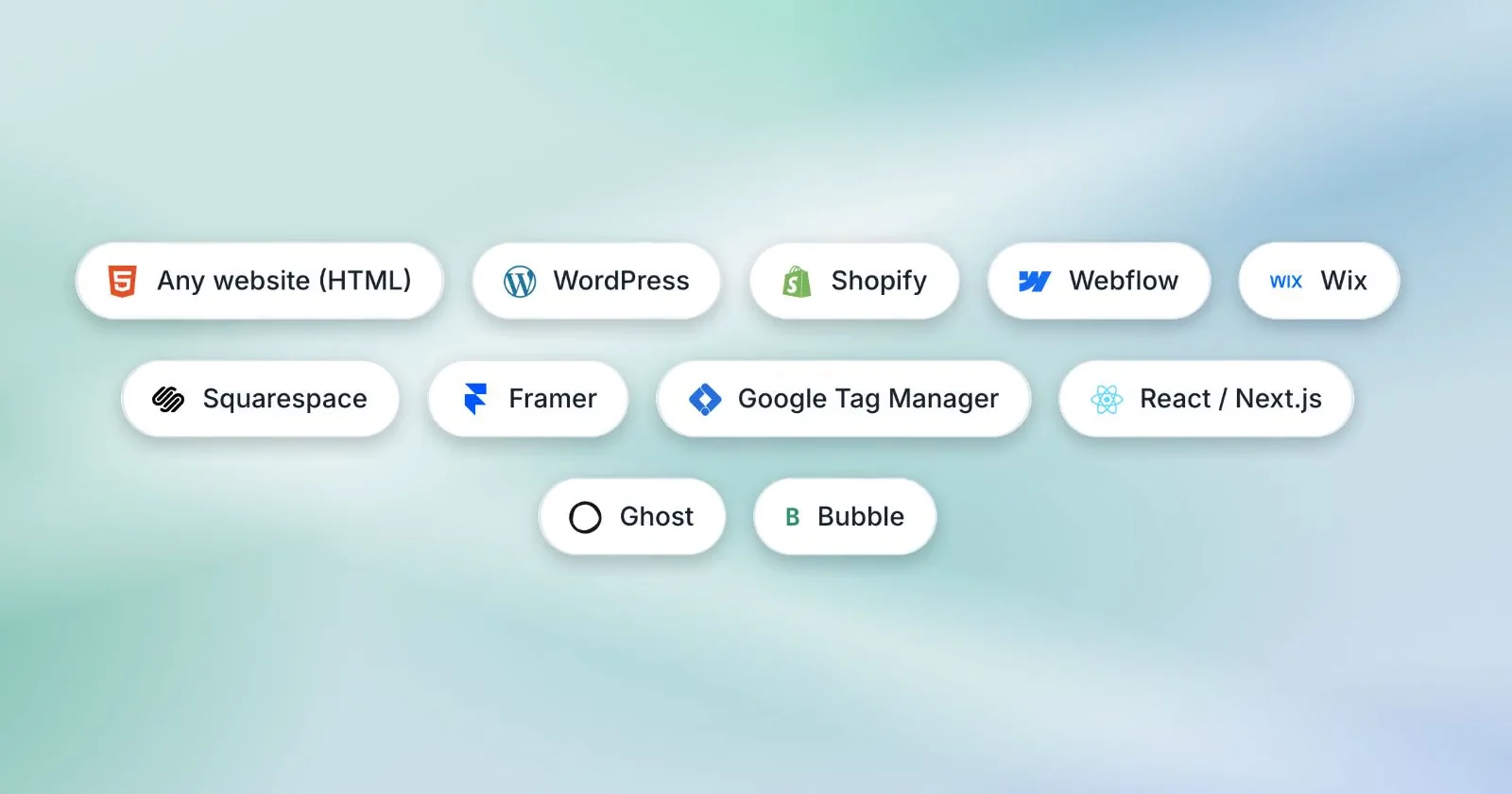
Putting Cluable on your website comes down to one line of code, pasted once. That part takes about a minute. The part that takes longer is finding where your website builder wants you to paste it.
Every builder has a box for this. Each one just gives it a different name and hides it in a different menu. So here is where that box lives on the platforms people use most, and how to check that it worked.
First, copy your own snippet
Open your Cluable dashboard, pick your bot, go to the Setup tab and open Embed code. Copy what you find there.
That snippet already carries your bot's ID, which is the one part nobody can guess. So please do not copy a snippet from a blog post or a help page, this one included. The examples you see online have a placeholder where your ID should be, and a placeholder answers nobody.
One more thing before you start. Your assistant only answers on the website address you gave it when you set it up. It does not mind whether that address starts with www. But the preview address your builder gives you, the one ending in something like webflow.io or wixsite.com, is a different address. Test on your real domain.
WordPress
The safest route is a free plugin that adds code to every page, because your snippet then survives theme updates.
- In your WordPress dashboard, go to Plugins, then Add Plugin, and install WPCode (or Insert Headers and Footers). Activate it.
- Open Code Snippets, then Header & Footer.
- Paste your snippet into the Footer box and save.
You can paste it into your theme's footer.php file instead. If you do, use a child theme, or the next theme update will quietly remove it.
Shopify
- From your Shopify admin, go to Online Store, then Themes.
- On your current theme, click the … button, then Edit code.
- Under Layout, open theme.liquid.
- Paste your snippet just before the closing
</body>tag, then click Save.
It now shows on every storefront page, including product, collection and cart pages. Remember that the snippet lives inside that theme. If you switch to a new theme later, paste it into the new one too.
Wix
- In your Wix dashboard, go to Settings, then Custom Code, which sits under Development & integrations.
- Click Add Custom Code and paste your snippet.
- Choose All pages, place the code at the end of the body, and click Apply.
Squarespace
- Open the Pages panel, click Custom Code at the bottom of it, then Code Injection.
- Paste your snippet into the Footer box and save.
Code Injection is not part of every Squarespace plan. If you cannot find it, that is usually why.
Webflow
- Open your project and go to Site settings, then the Custom code tab.
- Paste your snippet into the Footer Code box and save.
- Publish your site. Nothing changes on the live site until you do.
Framer
- Open your site's settings in the editor and go to the Custom Code tab.
- Click Add Script.
- Paste your snippet, set the placement to End of <body>, and save.
- Publish your site.
This is the one you saw in the video above.
Everything else
On Ghost, the box is under Settings, then Advanced, then Code injection, in Site Footer. On Bubble, it is under Settings, then SEO / metatags, in the box for scripts in the body. If you manage your scripts through Google Tag Manager, add the snippet as a Custom HTML tag that fires on all pages, then publish the container.
If somebody built your site by hand, send them the snippet with one sentence: "Please paste this just before the closing body tag on every page." They will know exactly what to do. Our setup guide has the details for developers, including React and Next.js.
Check that it worked
Open your site in a new tab. If you already had it open, refresh it properly so you are not looking at an old copy. The chat bubble appears in the corner within a few seconds.
Click it and ask something you get asked all the time. Then look at your dashboard, which shows your bot as live once it has answered its first message.
If the bubble does not appear, it is nearly always one of three things.
- The snippet is in the wrong place. It belongs just before the closing body tag, or in your builder's footer code box.
- You are looking at an old copy of the page. Caching plugins, and services that speed up your site, keep old copies of pages for a while. Clear the cache and look again.
- You are on a different address. A preview or staging address is not the address your assistant was set up for.
You paste it once. Everything you change after that, you change in your dashboard.
You only do this once
This is the part people are most relieved to hear. Once the snippet is on your site, you never need to touch it again.
When you change your assistant's name, its look or its tone in your dashboard, the change reaches your site on its own. When your pages change, it reads them again once a week while your plan is active. And the snippet loads after the rest of your page has finished, so your pages open as fast as they did before.
So the whole job is one paste and one publish. Everything after that happens in your dashboard, which is where it belongs.